How to Remove the Background From an Image for Free
How to Remove the Background From an Image for Free

i love tool box
Oct 29, 2026
You have a great product photo, but the messy table behind it makes it look cheap. Or you need your logo on a coloured banner and it arrives inside an ugly white box. Both jobs need the background gone.
Design apps can do it, but they take time to learn and often cost money. For most everyday photos, an automatic remover gets you a clean cut-out in seconds.
In this guide I'll show you how to remove the background from an image with the free Remove Background tool, plus how to fix rough edges and pick the right format.
| Quick answerTo remove the background from an image for free, upload a JPG, PNG or WebP photo to an online background remover, let it detect the subject, then download the result as a transparent PNG. Photos with a plain background and good contrast give the cleanest edges. Use the eraser and restore brush to tidy any leftovers. |
What Removing a Background Actually Does
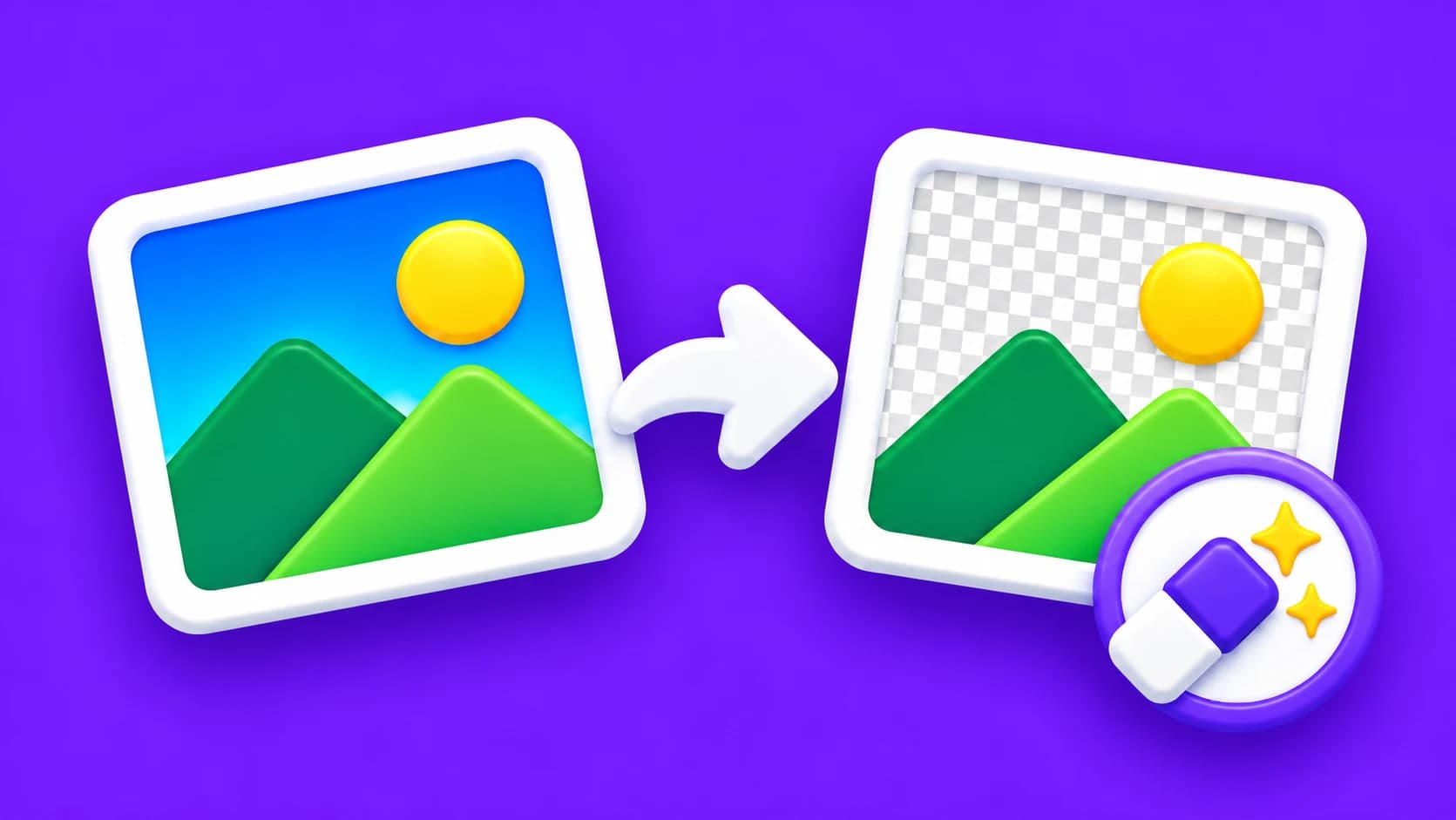
Removing a background turns every pixel around your subject transparent, so only the person, product or logo is left. You can then place it on any colour, photo or design.
Transparency is stored in an alpha channel, and not every format has one. MDN's image format guide notes that PNG has full alpha transparency support, while JPEG does not support an alpha channel at all.
That is why a background remover saves your cut-out as a PNG by default. Save it as a JPG and the empty area is filled with a solid colour instead.
Automatic removers look for the edge where the colours of the subject change into the colours of the background. The stronger that difference, the easier the outline is to find.
Which Photos Give the Cleanest Cut-Out
The cleanest results come from photos with a plain background and a clear difference in colour between the subject and what is behind it. The ilovetoolbox tool itself says it works best on photos with a fairly plain background.
What to expect from different photos
| Photo type | Typical result | Tip |
|---|---|---|
| Product on a plain light background | Clean, sharp edges | Ideal for shop listings |
| Logo on a solid colour | Very clean | Use a vector or SVG file if you have one |
| Portrait against a plain wall | Good, hair may need tidying | Use the restore brush on fine strands |
| Pet on a patterned rug | Mixed | Expect some manual clean-up |
| Subject on a busy street or crowd | Hardest case | Reshoot on a plain background if you can |
| Subject the same colour as the background | Edges may disappear | Add contrast when you take the photo |
If you can control the photo, a few seconds of setup saves minutes of fixing later. A plain wall, even light and a little space around the subject make a big difference.
Soft, even light from a window or two lamps avoids harsh shadows that can be mistaken for part of the subject. Keep the subject in focus too, because a sharp outline is easier to detect than a blurry one.
How to Remove the Background From an Image (Step by Step)
I tested these steps on the live ilovetoolbox Remove Background tool in October 2026, so the button names below match what you will see on screen.
- 1.Open the free Remove Background tool in any browser on your phone, tablet or computer.
- 2.Click "Browse file" or drag one JPG, PNG or WebP image into the upload box.
- 3.Wait a few seconds while the background is removed automatically, then check the cut-out on the checkerboard preview.
- 4.Hold the eye icon to compare the result with your original photo.
- 5.If needed, adjust Tolerance, Edge refinement or Edge smoothness, then click "Re-run".
- 6.Use the Eraser to remove leftover background and the Restore brush to bring back parts of the subject.
- 7.Under "Background", keep Transparent or choose White, Black, Custom or Replace with image.
- 8.Choose PNG, WebP or JPG under "Output format", then click "Download image".
| From my testI uploaded a 1200 x 900 px JPG test image of a red mug with a soft shadow on a plain light grey background. At the default Tolerance of 38, the background and shadow were removed in a few seconds. The transparent PNG came out at 97.6 KB, and the same cut-out as WebP was 15.0 KB. |
The output kept the original 1200 x 900 px dimensions, so none of the detail in the mug was lost along the way.
The tool is free, needs no sign-up and adds no watermark. It handles one image at a time, and you can read how files are handled in our privacy policy.
How to Fix Rough Edges and Leftover Background
Most problems come from the tolerance being slightly too high or too low for your photo. The settings below fix the common ones in seconds. Start with the defaults, which worked well on my plain-background test, and only change a setting when you can see a problem.
Quick fixes for common cut-out problems
| Problem | Setting to try | What it does |
|---|---|---|
| Bits of background left behind | Raise Tolerance, or use the Eraser | Higher tolerance removes more of the background |
| Parts of the subject removed | Lower Tolerance, or use the Restore brush | Keeps more of the colours close to the subject |
| A thin coloured halo around the edge | Increase Edge refinement | Bites off leftover fringe pixels |
| Jagged or stair-stepped edges | Increase Edge smoothness | Softens and feathers the cut edge |
Change one setting at a time and click "Re-run" after each change. Then hold the eye icon again, so you can see exactly what improved.
Fine details such as hair, fur or see-through glass are the hardest areas for any remover. Zoom in, work slowly with the brush, and accept that a few stray strands may need trimming rather than perfect recovery.
Choose the Right Background and Output Format
Transparent PNG is the safest choice when you are not sure where the image will be used. You can always add a colour later, but you cannot easily take one away.
Pick WebP when the cut-out is going straight onto a website, because it keeps the transparency in a much smaller file. In my test the WebP was about a sixth of the PNG size.
Choose White or a Custom colour with JPG output when a shop, marketplace or form asks for a solid background. Check that platform's current image rules first, as they change over time.
Want a new background instead of an empty one? Choose "Replace with image" to drop your subject onto another photo, or place the transparent PNG in your usual design app.
Need another format later? The free Image Converter switches files between JPG, PNG, WebP, GIF and BMP.
Product Photo Tips Before Black Friday
Sales season is when shoppers compare listings side by side, so clean, consistent product photos really stand out. Removing backgrounds is the quickest way to make a mixed set of photos look like one catalogue.
Use the same background colour, the same crop and the same pixel size for every product. Shoppers notice a tidy, consistent grid of photos more than any single perfect shot.
Once each cut-out is ready, use Crop Image to give every product the same framing. Then resize them to the size your store theme displays, so pages stay light on mobile.
Finally, run the files through the free Compress Image tool. Our guide on how to compress images online without losing quality explains the settings.
| Use images you have the rights toOnly remove backgrounds from photos you took yourself or have permission to use. Cutting a product or person out of someone else's photo does not change who owns it. |
Where to Use Your Transparent Image
A transparent cut-out works almost anywhere you need the subject without its surroundings: product listings, website banners, social posts, video thumbnails, slides and printed flyers. If you plan to print it, start from the largest original you have, since print needs far more pixels than a screen.
For logos, one transparent PNG sits cleanly on both light and dark backgrounds. You can also turn it into site icons with the free Favicon Generator.
Common Background Removal Mistakes to Avoid
- Saving the cut-out as JPG: the transparent area turns into a solid block of colour.
- Starting with a tiny, blurry photo: soft edges make it hard to find the outline.
- Using a busy background: patterns and clutter confuse automatic detection.
- Pushing Tolerance too high: parts of the subject start to disappear.
- Skipping the comparison check: small missing details are easy to overlook.
- Overwriting your original: keep it, in case you want a different cut later.
Final Thoughts
Removing a background is easiest when you start with a plain, well-lit photo, keep the result as a transparent PNG, and fix any rough edges with one setting at a time.
Ready to try it? Open the free Remove Background tool, drop in your photo, tidy the edges, and download a clean transparent cut-out in a few seconds.
| Related free toolsCompress Image: Shrink your finished cut-outs so product pages load faster.Resize Image: Set every product photo to the same pixel size.Crop Image: Give each cut-out consistent framing and spacing.Image Converter: Switch between JPG, PNG, WebP, GIF and BMP. |
Tags: remove background from image, background remover, transparent png, remove background free, product photos, cut out image, transparent background, image editing
Frequently asked questions
Yes. The ilovetoolbox Remove Background tool is free to use, needs no sign-up and adds no watermark to your cut-out. You upload one image at a time, check the preview, adjust the edges if needed, then download the result as a PNG, WebP or JPG file.
No, the subject keeps its original pixel size. In my test a 1200 x 900 px photo stayed 1200 x 900 px. Edges can look rough on busy or low-contrast photos, so use Edge refinement, Edge smoothness or the restore brush to tidy them before downloading.
You can upload JPG, PNG and WebP images. The tool saves your cut-out as PNG by default so the transparency is kept, and it also offers WebP and JPG output. Choose PNG or WebP for transparency, because a JPG fills the empty area with a solid colour.
Yes. The tool works in any modern browser on Android phones, iPhones, tablets and computers, with nothing to install. Open the Remove Background tool, tap Browse file to pick a photo, wait for the preview, then tap Download image to save your transparent cut-out.
Choose PNG when you are unsure where the image will go, because it keeps full transparency everywhere. Choose WebP for websites, as it keeps transparency in a much smaller file. Choose JPG with a white or custom background only when a platform asks for a solid background.