Best Image Format for Websites: JPG vs PNG vs WebP vs AVIF
Best image format for web pages? Compare JPG, PNG, WebP and AVIF on file size, quality and browser support, then convert images free with no sign-up.

i love tool box
Oct 28, 2026
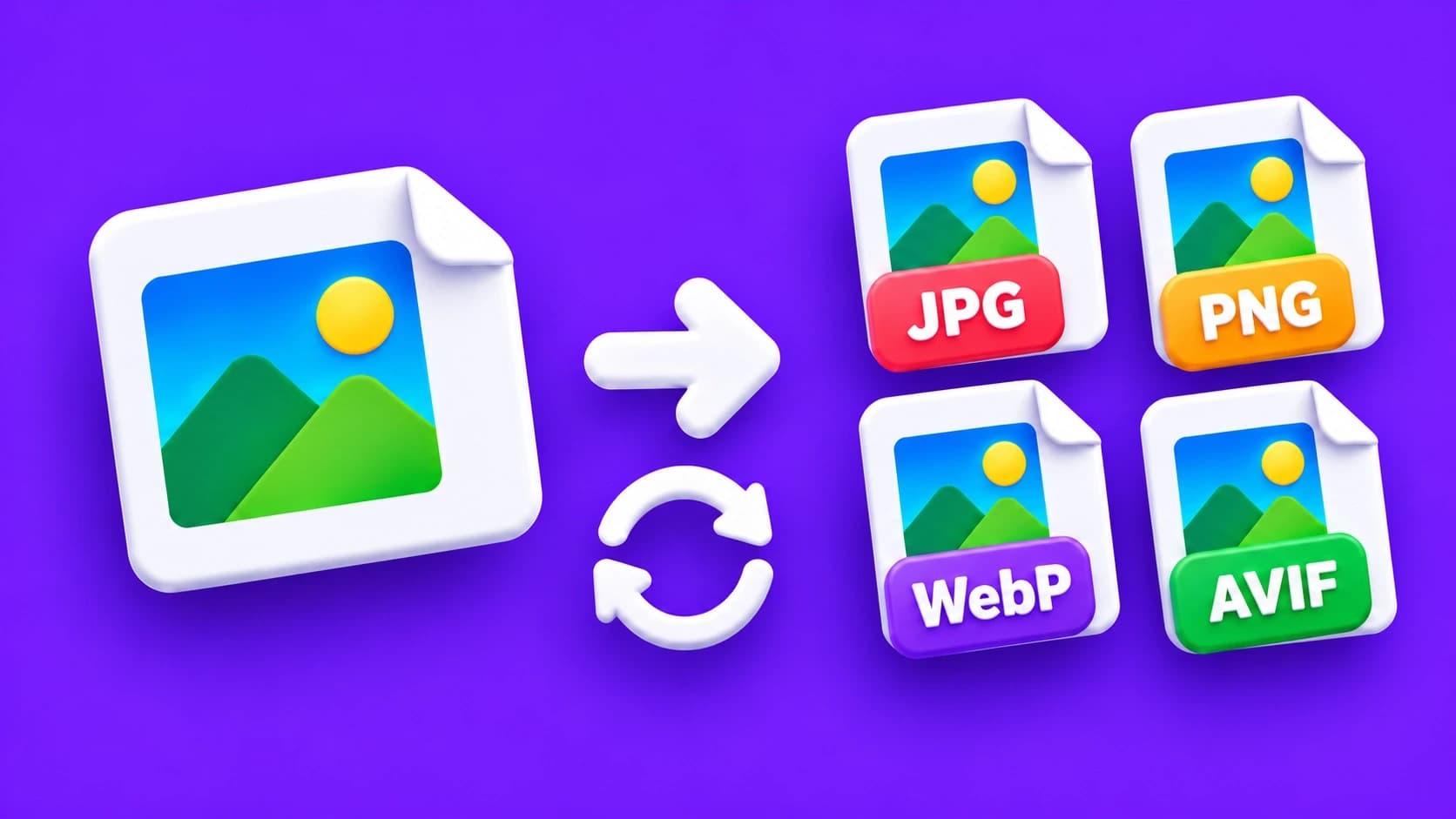
You add a few photos to a page and it suddenly crawls on mobile. Or a logo arrives with a fuzzy edge and a white box behind it. Often the cause is the same: the wrong image format.
JPG, PNG, WebP and AVIF trade file size, sharpness and transparency in different ways. Pick the right one and your pages get lighter without looking worse.
In this guide I'll compare the best image format for web use case by case, and show you how to switch images to WebP with the free Image Converter.
| Quick answerFor most websites, WebP is the best all-round image format. It is typically 25 to 35 percent smaller than JPG at similar quality, supports transparency and works in all current major browsers. AVIF can be smaller still but needs a fallback. Keep JPG as a photo fallback, PNG for crisp screenshots and SVG for icons. |
JPG vs PNG vs WebP vs AVIF at a Glance
WebP and AVIF are the modern formats, while JPG and PNG are the older ones every browser has supported for decades. The table below sums up how they compare on the things that matter for a website.
Web image format comparison
| Format | Compression | Transparency | Animation | Browser support | Best for |
|---|---|---|---|---|---|
| JPG | Lossy only | No | No | Every browser | Photo fallback |
| PNG | Lossless | Yes, full alpha | No (APNG aside) | Every browser | Screenshots, sharp graphics |
| WebP | Lossy and lossless | Yes | Yes | All current major browsers | Most website images |
| AVIF | Lossy and lossless | Yes | Yes | Current Chrome, Edge, Firefox, Safari, Opera | Smallest photos, with a fallback |
These details come from MDN's image file type and format guide, which recommends WebP or AVIF for raster images because they generally compress better than PNG, JPEG and GIF.
If you only remember one row, remember WebP: it covers photos, transparency and animation in a single, widely supported format.
Why the Image Format Affects Page Speed
The format decides how many bytes a visitor has to download before the picture appears. Smaller files arrive sooner, especially on a phone with a weak signal.
That matters for Core Web Vitals. Google's Largest Contentful Paint guidance asks sites to show the main content in 2.5 seconds or less, and an image is very often that largest element.
Google's Lighthouse checks this too. Its Serve images in modern formats audit flags JPG, PNG and BMP files and estimates how much you would save by switching to WebP or AVIF.
Format also affects data use for your visitors. A page with ten 500 KB PNG photos asks a phone to download about 5 MB of images, while the same pictures as WebP are usually a fraction of that.
When to Use Each Format
Each format still has a job. The trick is to match the format to the kind of image, not to pick one format for everything.
JPG: the safe fallback for photos
JPG uses lossy compression, which suits photos because small losses in busy detail are hard to see. It has no transparency, and sharp text or line art can pick up blurry artefacts around the edges. Every browser, email client and app opens JPG, which is why it stays the safest fallback.
PNG: sharp edges and transparency
PNG is lossless, so screenshots, charts and text stay perfectly crisp, and it supports full transparency. The catch is size: a photo saved as PNG is usually far heavier than the same photo as JPG or WebP. Use it when every pixel must stay exact.
WebP: the best all-rounder
MDN reports that lossy WebP files are on average 25 to 35 percent smaller than JPEG at similar quality, and lossless WebP is typically 26 percent smaller than PNG. It also handles transparency and animation in one format.
Because one WebP file can replace both a JPG photo and a transparent PNG, it keeps a media library simpler. Many CMS platforms and image CDNs can also create WebP copies for you.
AVIF: the smallest files, with a catch
AVIF usually compresses better again. MDN cites a median saving of about 50 percent against JPEG, compared with about 30 percent for WebP. It is slower to encode, does not render progressively, and older devices need a fallback.
AVIF can also store HDR images with a bigger contrast between the lightest and darkest areas, which helps on high-end displays, though that matters less for everyday blog and product images.
| Watch out for older devicesChrome's Lighthouse documentation notes that WebP and AVIF images will not display on iPhones running iOS versions below 16. Always keep a JPG or PNG fallback when you serve modern formats. |
Best Image Format for Web by Image Type
The best image format for web pages depends on what is in the picture. Use this table as a quick decision guide.
Which format to choose
| Image type | First choice | Fallback or alternative |
|---|---|---|
| Blog and hero photos | WebP or AVIF | JPG |
| Product photos on a white background | WebP | JPG |
| Product cut-outs with a transparent background | WebP | PNG |
| Screenshots, charts and text-heavy graphics | PNG or lossless WebP | PNG |
| Logos and icons | SVG | PNG if no vector file exists |
| Short animations | Animated WebP | GIF, or a short video for longer clips |
If you are unsure, start with WebP for everything except logos, then keep PNG only where an image must stay pixel-perfect.
Before converting, resize every image to the size it actually displays at. A smaller canvas cuts far more weight than any format switch on its own.
How to Convert Images to WebP (Step by Step)
The free Image Converter turns JPG, PNG, GIF or BMP files into WebP in a few clicks. I tested these steps on the live tool in October 2026, and they match what you will see on screen.
- 1.Open the free Image Converter in any browser on your phone, tablet or computer.
- 2.Click "Browse files" or drag your JPG, PNG, WebP, GIF or BMP image into the upload box.
- 3.Under "Convert to", click WebP. Choose JPG / JPEG instead if you need a fallback copy.
- 4.Look at the "Background" setting. It only fills transparent areas when the chosen format cannot keep them, such as JPG.
- 5.Click "Add images" if you want to convert several files to the same format in one go.
- 6.Click "Download" to save your converted image.
| From my testI converted a 1600 x 1067 px PNG test graphic of 1.36 MB. Saved as WebP it came out at 118 KB, and as JPG it was 200 KB. Results vary by image, but the gap shows why PNG is a poor choice for photo-style images. |
If your image has a transparent background, WebP keeps it, so the Background setting does not change that result.
The Image Converter is free, needs no sign-up and adds no watermark. You can read how uploaded files are handled in our privacy policy.
The converter does not output AVIF at the moment. If you want AVIF, check whether your CMS, hosting or image CDN can create it automatically, and keep WebP or JPG as the fallback.
Serve Modern Formats Safely with a Fallback
The safest way to use WebP or AVIF is to offer a fallback that every browser understands. In HTML, the picture element lets the browser pick the first format it supports and ignore the rest.
List AVIF first, then WebP, then a plain JPG or PNG in the img tag. Browsers that understand AVIF take the smallest file, and everything else steps down until it finds a format it can show.
If you use a CMS, check its media settings or a trusted image plugin first. Many platforms can generate WebP or AVIF versions and the fallback markup for you, which saves editing HTML by hand.
| Pro tipResize first, convert second, compress last. Set the display size, switch to WebP, then run the file through a compressor if it still feels heavy. |
After converting, run the file through the free Compress Image tool if you need it smaller. Our guide on how to compress images online without losing quality explains the settings.
Common Image Format Mistakes to Avoid
- Saving photos as PNG: the file is often many times heavier than WebP or JPG.
- Saving screenshots as low-quality JPG: text and edges pick up blurry artefacts.
- Switching to AVIF with no fallback: older devices may show a broken image.
- Converting before resizing: a 4000 px image is still heavy in any format.
- Converting JPG to PNG to fix quality: it adds weight but cannot restore lost detail.
- Flattening transparent logos to JPG: the transparent area turns into a solid box.
Final Thoughts
There is no single winner for every image, but WebP is the best default for most websites, AVIF is worth adding where your setup supports it, and JPG and PNG remain the safe fallbacks.
Ready to try it? Open the free Image Converter, drop in your JPG or PNG, choose WebP, and download a lighter copy for your site in a few seconds.
| Related free toolsCompress Image: Shrink JPG, PNG, SVG and GIF files after converting.Resize Image: Set the exact width and height before you convert.Convert from JPG: Turn JPG images into PNG or GIF files.Remove Background: Cut out product photos for transparent WebP or PNG images. |
Tags: best image format for web, webp, avif, jpg vs png, image formats, page speed, image converter, core web vitals
Frequently asked questions
Yes. The ilovetoolbox Image Converter is free, needs no sign-up and adds no watermark. You can convert one image or several at once between JPG, PNG, WebP, GIF and BMP, and it also offers TIFF, ICO and PDF as output options in the same screen.
Converting to WebP may apply slight compression, which is usually hard to see at normal viewing size. Converting a PNG screenshot keeps edges sharper than JPG would. Keep your original file, because converting a compressed image again cannot bring back detail that was already lost.
WebP works in all current versions of Chrome, Edge, Firefox, Safari and Opera. AVIF works in current versions of the same browsers. Older devices, including iPhones below iOS 16, may not show either format, so always serve a JPG or PNG fallback alongside them.
Yes. The converter runs in any modern mobile browser, so there is nothing to install. Open the Image Converter, tap Browse files to choose a photo, select WebP under Convert to, then tap Download to save the new file to your phone.
Use WebP as your default because it is widely supported and easy to create. Add AVIF if your CMS, hosting or image CDN can generate it automatically, since it is often smaller still. In both cases keep a JPG or PNG fallback for older browsers and devices.


